Default Provider and Model
SmartHopper lets you set a global default provider for your whole Grasshopper setup while still overriding the provider or model on individual components whenever a specific task needs it.
How SmartHopper decides which provider and model to use
From most specific to most general:
- Per-component provider selection — right-click any AI component on the canvas → Select AI Provider to pin that component to a specific provider, or leave it on Default.
- Per-component
Settings(S) input — wire a Settings component (or a plain text Panel containing a model name) into the component'sSettings(S) input to choose a specific model, temperature, token limit, or batch mode for that call. - Canvas Assistant settings — the toolbar Canvas Assistant uses the provider and model configured under SmartHopper → Settings → Canvas Assistant (falling back to the global default when left empty).
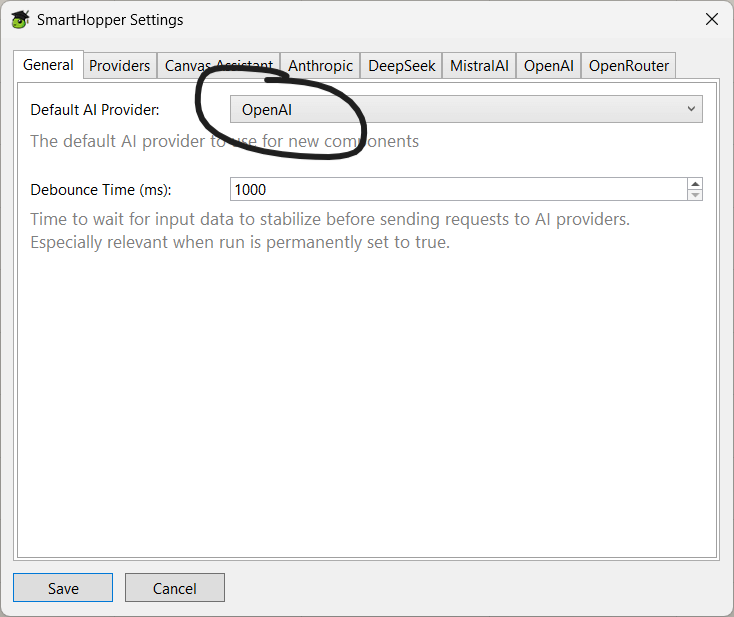
- Global default provider — set under SmartHopper → Settings → General → Default AI provider, paired with the default model configured in each provider's settings view (opened from the General tab's provider tiles).
[Component right-click] + [Settings (S) input] ──► [Canvas Assistant tab (for chat)] ──► [Global default provider]
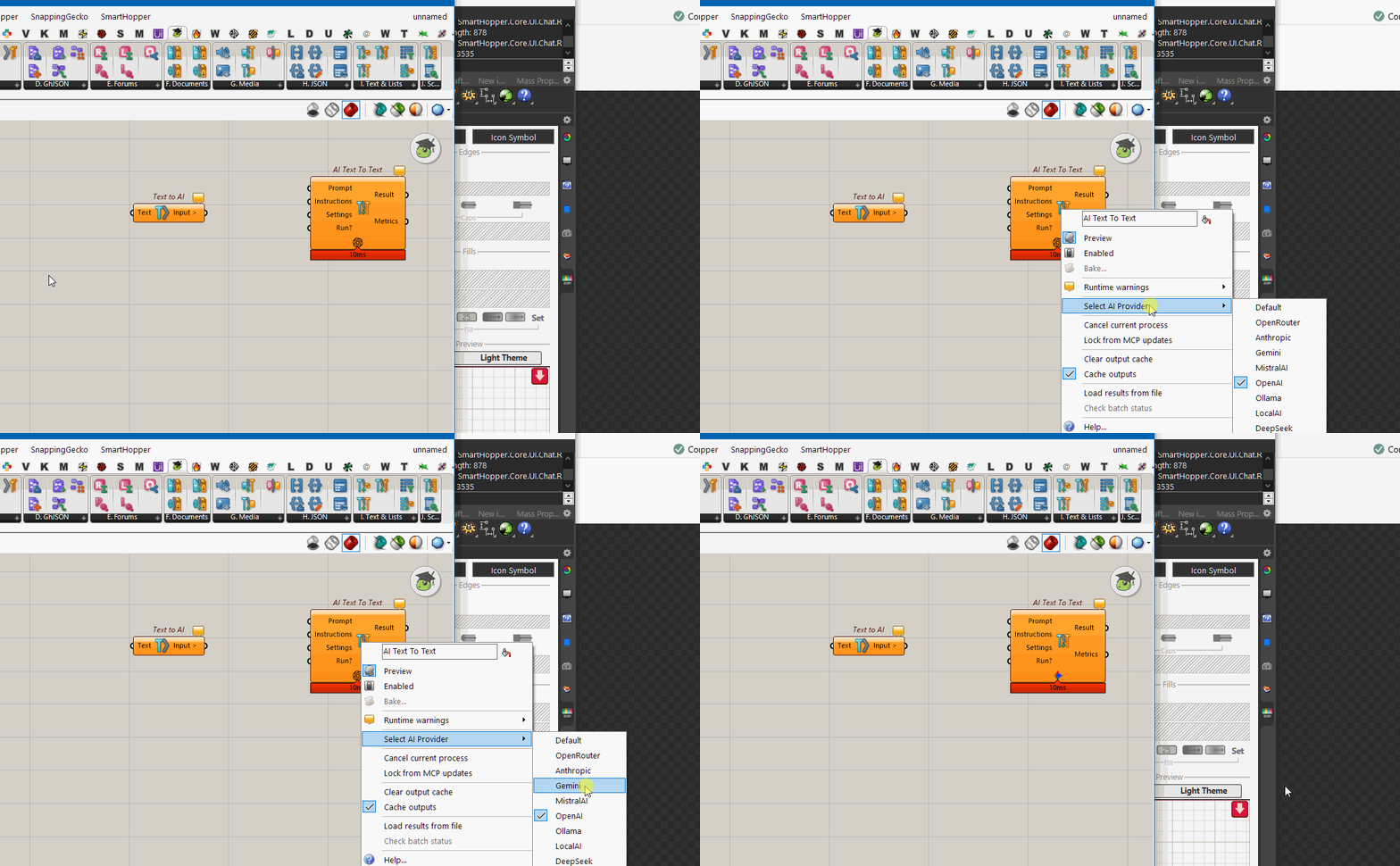
Setting your global default provider
Open SmartHopper → Settings → General and choose your preferred provider in the Default AI provider dropdown. Every AI component left on Default will use this provider.
Picking a model for a task
Different tasks require different model capabilities — for example, tool calling for the Canvas Assistant, vision for AI Image To Text (AIImg2Text), or image generation for AI Text To Image (AIText2Img).
- Use the AI Models component (
SmartHopper → A. AI) to list the models available on a provider. - If you request a model that lacks a required capability (or leave the model blank), SmartHopper automatically checks the model catalog and warns you or selects a capable model on that provider.