Settings Reference
Open SmartHopper → Settings from the Grasshopper menu bar to configure your default AI provider, provider credentials, assistant behavior, and logging.
Settings are saved in SmartHopper.json inside your Grasshopper roaming profile, while sensitive secrets (such as API keys) are encrypted using your operating system's secure store (Windows DPAPI or macOS Keychain).
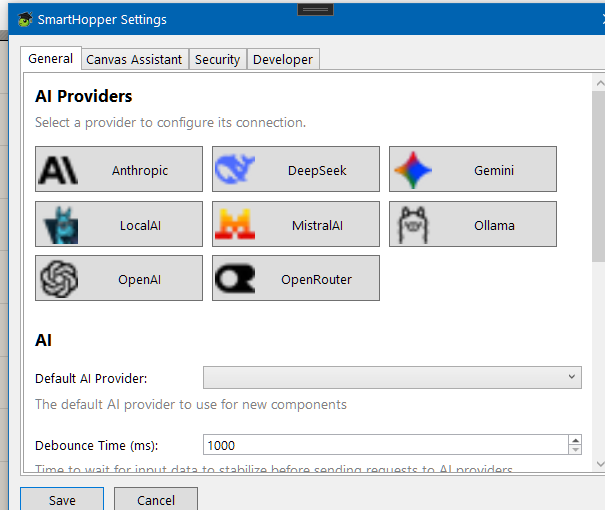
General tab
Opens with a provider tile grid — click a provider's tile to open its settings view (API key, endpoint, default model, and provider-specific options). Below the grid:
| Setting | Default | What it controls |
|---|---|---|
| Default AI provider | (none) | Global default provider used by AI components left on Default. |
| Debounce time | 1000 ms | Delay before input or state changes trigger a new component run. |
| Batch poll interval | 20 s | Minimum interval (in seconds, minimum 10) between status checks when running asynchronous batch jobs. |
| Modality fallback | Disabled | When enabled, automatically routes image or audio inputs through a capable model if the selected model does not natively support that modality (configured_provider or any_provider). |
Canvas Assistant tab
Configures the toolbar Canvas Assistant's provider, model, canvas button visibility, greeting, follow-up prompt suggestions, and autonomous time/token limits — see Assistant Settings.
Security tab
Groups trust, integrity, and network controls:
- Trusted providers — enable or disable discovered provider plugins. See Enable, disable, trust & verify providers.
- Provider integrity check — how SmartHopper handles provider DLLs whose SHA-256 hash does not match the official release manifest (
Softwarns and loads;Hardblocks unverified files when online;Strictblocks unless verified online). - Network settings — HTTP timeout and the external download size limit.
- External-source allowlist — origins that files, URLs, and chat images may be fetched from without prompting.
Developer tab
Log sinks and retention — everything stays on your machine:
| Setting | Default | What it controls |
|---|---|---|
| Live output | On (Info) | Echoes log messages at or above the selected level to the Rhino command line. |
| Log file | On (Trace) | Writes detailed daily log files in your Grasshopper profile folder. |
| Retention | 3 days | How many days of rolling log files to keep on disk. |