Canvas Assistant
The Canvas Assistant is SmartHopper's built-in conversational AI inside Grasshopper. It can see what you're working on, answer questions about your definition, look up answers on community forums, and — with your approval — build or edit components right on your canvas.
See the assistant in the Canvas Assistant video, or explore all 80+ actions it can take in the AI Tools Library.
Opening the assistant
Click the SmartHopper button on the Grasshopper canvas toolbar to open the chat window.
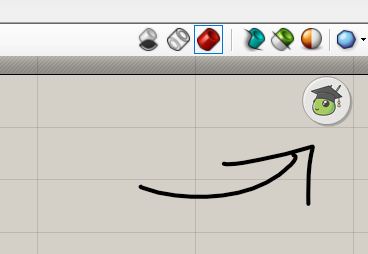
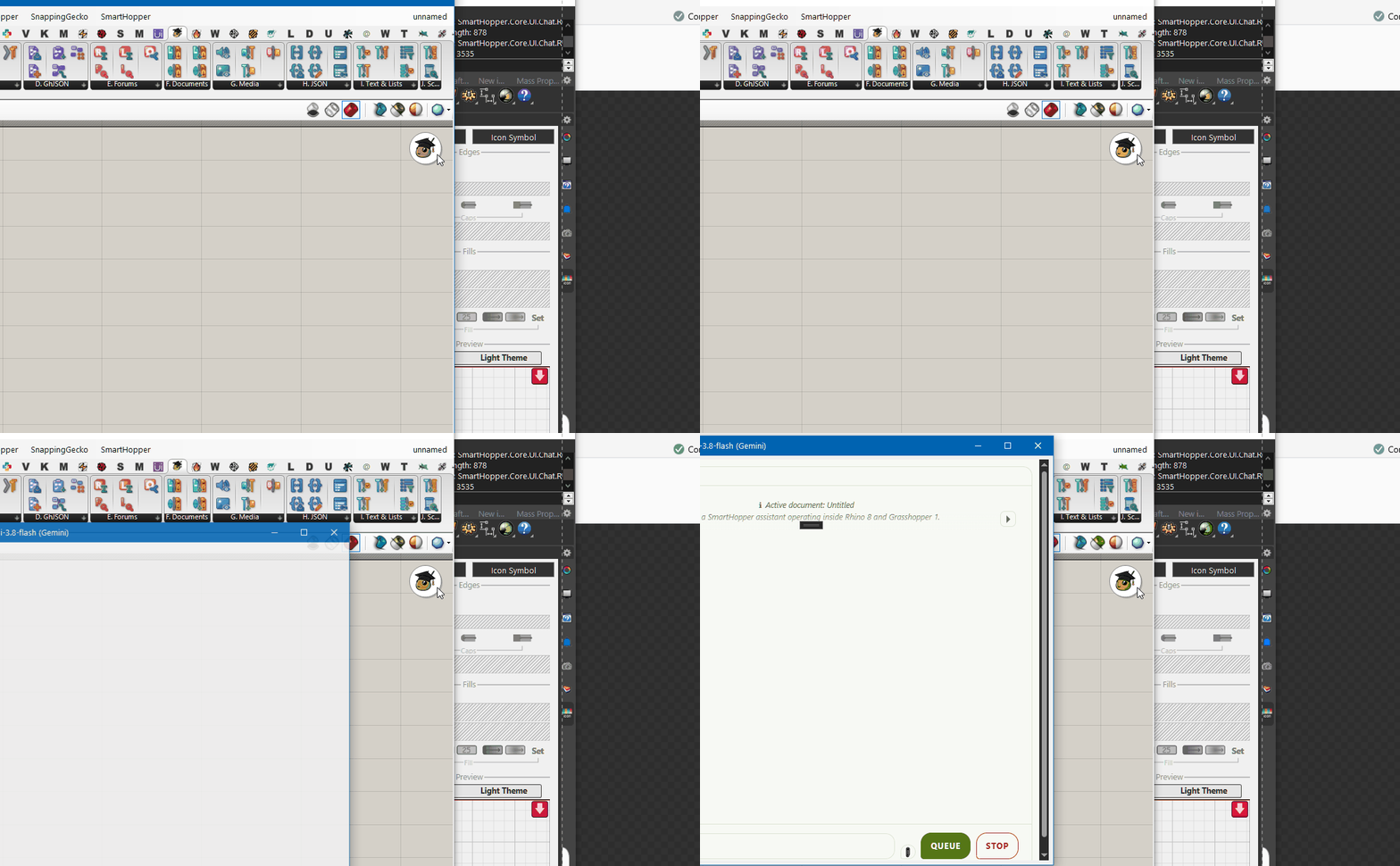
If the button is hidden, enable Canvas button under SmartHopper → Settings → Canvas Assistant.
What the assistant can do for you
Read and explain your definition
Ask questions like "What does this selected group of components do?" or "Why is this component showing an error?". The assistant can inspect your current selection, components with errors, what's visible in your viewport, or the structure of your whole document, and visually point to components on your canvas to guide you.
Build, wire, and tidy components
Ask the assistant to place new components, connect parameters, set slider or toggle values, group related nodes, or tidy up a messy section of your graph. Every proposed change opens the canvas change review dialog so you can inspect and approve each edit before it touches your document.
Write and fix script components
Describe a task in Python, C#, VB.NET, or IronPython and the assistant will generate a complete script component (with inputs, outputs, and validated code) and propose placing it on your canvas — or update an existing script component in place. See Write a script with AI.
Search forums, web pages, and local files
Ask the assistant to search the McNeel or Ladybug Tools forums, read a web page, or summarize a local PDF, Word document, or spreadsheet. See Search forums and Files & web to Markdown.
How the chat session works
- Automatic environment context — the assistant knows the current time, your open file's name and metadata, which components you have selected, and what is currently visible in your viewport.
- Contextual greeting & follow-up suggestions — when you open the chat, the assistant can greet you with context-aware suggestions and offer one-click follow-up prompts after each reply (both can be toggled in Assistant settings).
- Multi-step autonomous runs — for larger requests, the assistant can plan and chain multiple tool calls in a single turn, bounded by configurable time and token limits.
Choosing the assistant's provider and model
The Canvas Assistant has its own provider and model setting under SmartHopper → Settings → Assistant, separate from the default provider used by canvas components. Always pick a model that supports tool calling so the assistant can inspect and interact with your canvas.