Open Files & Convert Web Pages to Markdown
Turn local documents and web pages into clean Markdown text — either locally with zero AI cost, or with AI-generated image captions and descriptions (SmartHopper → F. Documents and SmartHopper → B. Input).
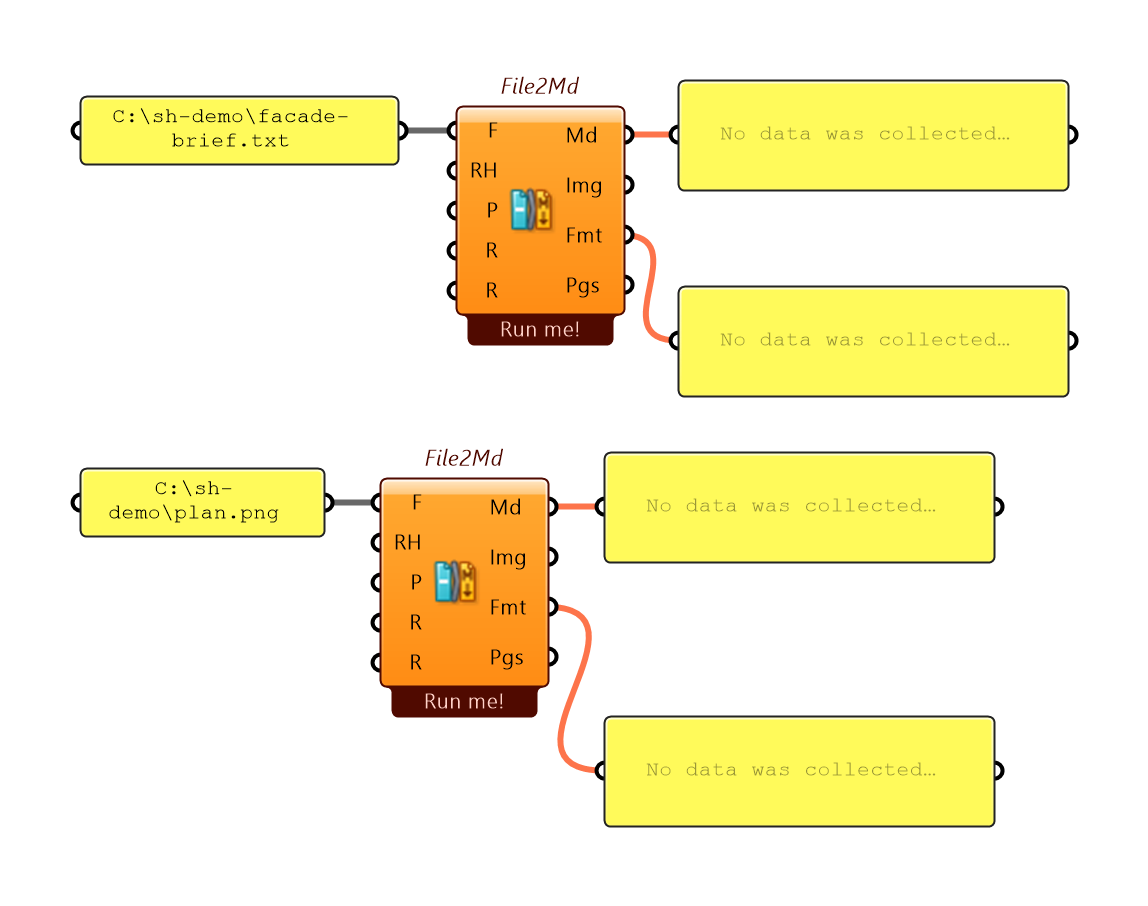
Converting local files
File To Markdown (File2Md, in F. Documents) converts local files to Markdown and extracts embedded images locally — no AI provider required:
| Category | Supported formats |
|---|---|
| Documents & presentations | PDF, DOCX, ODT, PPTX, ODP, RTF, TXT |
| Spreadsheets & structured data | XLSX, ODS, CSV, JSON, XML |
| Web, email & e-books | HTML, EML, EPUB |
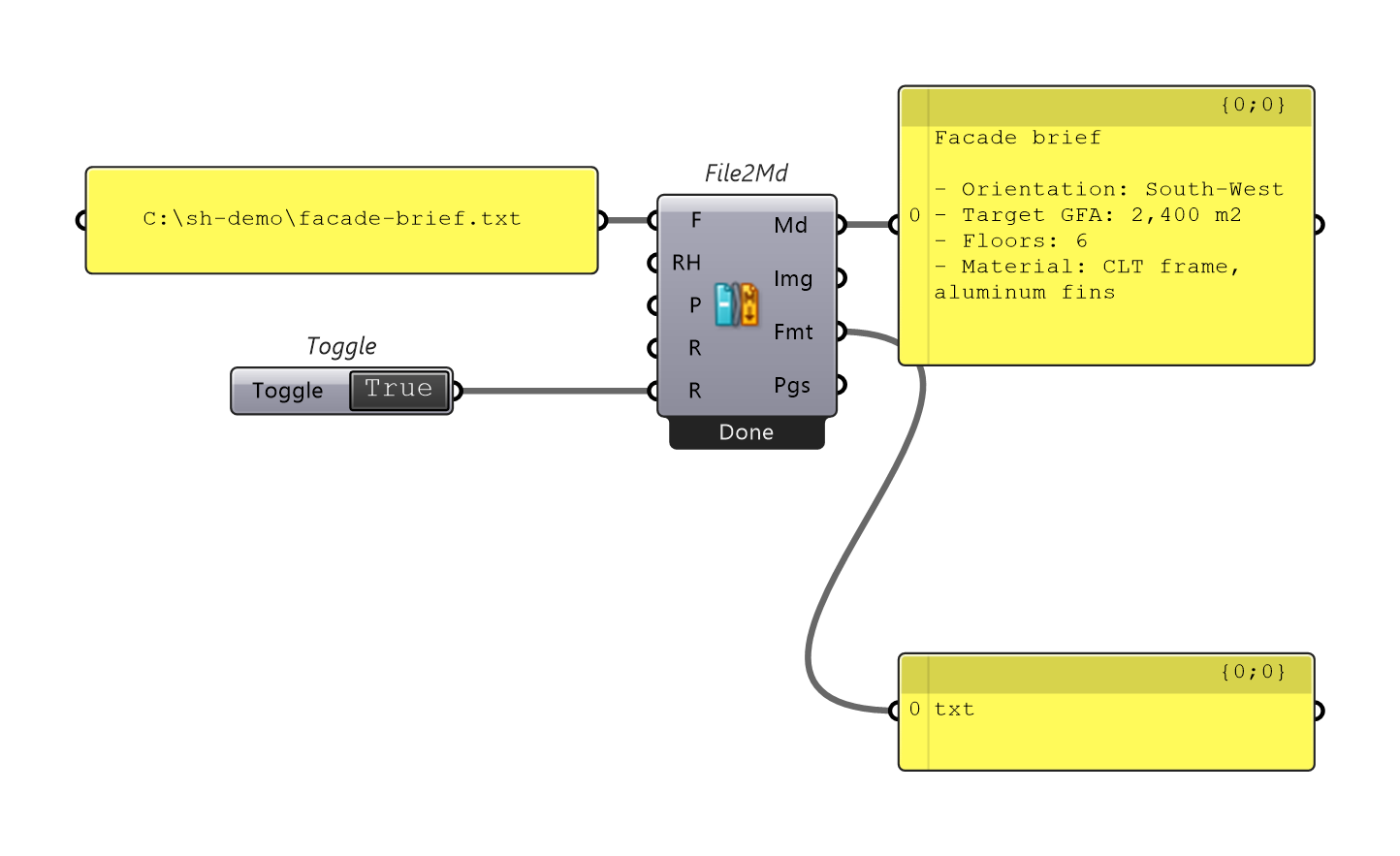
Need AI-generated captions or descriptions for the images inside the document? Use AI File To Markdown (AIFile2Md, in F. Documents) — it appends AI-generated visual evidence under labeled headings.
Converting web pages
Web To Markdown (Web2Md, in F. Documents) fetches a URL and converts it to clean Markdown locally — no AI provider required. It includes dedicated extractors for Wikipedia/Wikimedia, GitHub and GitLab files, Discourse forum posts, and Stack Exchange questions, falls back to a clean HTML reader for general pages, and respects robots.txt.
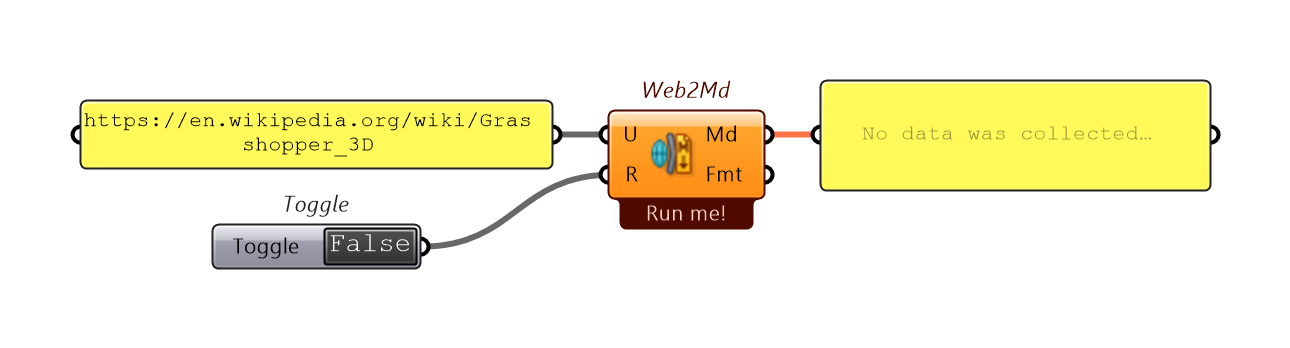
When you also want AI captions or descriptions for images on the page, use AI Web To Markdown (AIWeb2Md).
Sending files or web pages to an AI Output component
You can feed converted documents into an AI call in two ways:
- One-step Input wrapper (
B. Input): Wire a file path into File to AI (File2AI) or a URL into Web to AI (Web2AI), then connectInput >to any Output component such as AI to Text or AI to JSON. - Inspect first (
F. Documents): Run File To Markdown or Web To Markdown first so you can inspect or trim the Markdown in a Panel before wiring it into Text to AI → AI to Text. - Or ask the Canvas Assistant: Ask "Read
C:\path\to\spec.pdfand list all structural load requirements" — the assistant callsfile2mdautomatically.