AI Providers
SmartHopper works with the providers you already use — or none at all. Cloud providers need an API key; Ollama and LocalAI run free and private on your own machine.
Supported providers
| Provider | Type | Needs |
|---|---|---|
| OpenAI | Cloud | API key |
| Anthropic | Cloud | API key |
| Google Gemini | Cloud | API key |
| MistralAI | Cloud | API key |
| DeepSeek | Cloud | API key |
| OpenRouter | Cloud | API key (multi-model gateway) |
| Ollama | Local | Local server, no key |
| LocalAI | Local | Local server, no key |
The general setup flow
Every provider follows the same pattern:
- Get credentials — an API key from the provider's console, or a running local server for Ollama/LocalAI.
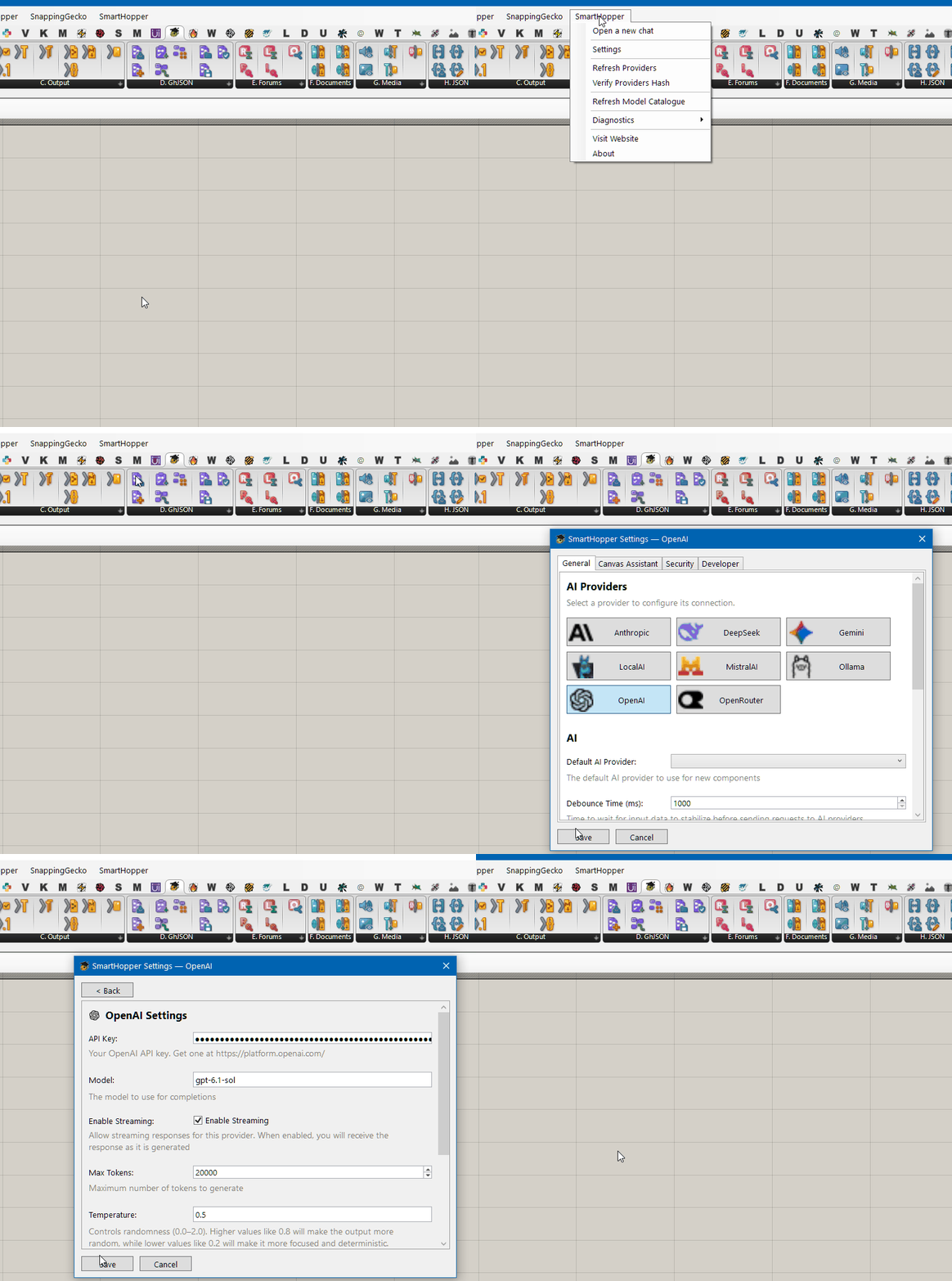
- Open SmartHopper → Settings in Grasshopper.
- Click the provider's tile on the General tab and paste the key or set the endpoint.
- Pick your defaults — set the default provider on the General tab, and optionally a default model per provider.
- Start using it — components set to Default provider use your choice; any AI component can override it via right-click → Select AI Provider.
API keys are encrypted using your OS secure store (DPAPI on Windows, Keychain on macOS) and stored only on your machine. Never share your keys.
The Select an AI Provider video shows this flow on the canvas.
Choosing a provider and model
Each provider has different strengths across reasoning, tool calling, vision, image generation, speech, context window size, and batch processing. Drop the AI Models component (SmartHopper → A. AI) onto your canvas to list the models available from any provider, or ask the assistant "Which models on my providers support image generation?" (it uses the providers_list and providers_models tools automatically).