Image & Audio Components
Generate and analyze images, play or save audio and images directly on the canvas, and capture screenshots of the Grasshopper canvas or Rhino viewports (SmartHopper → G. Media).
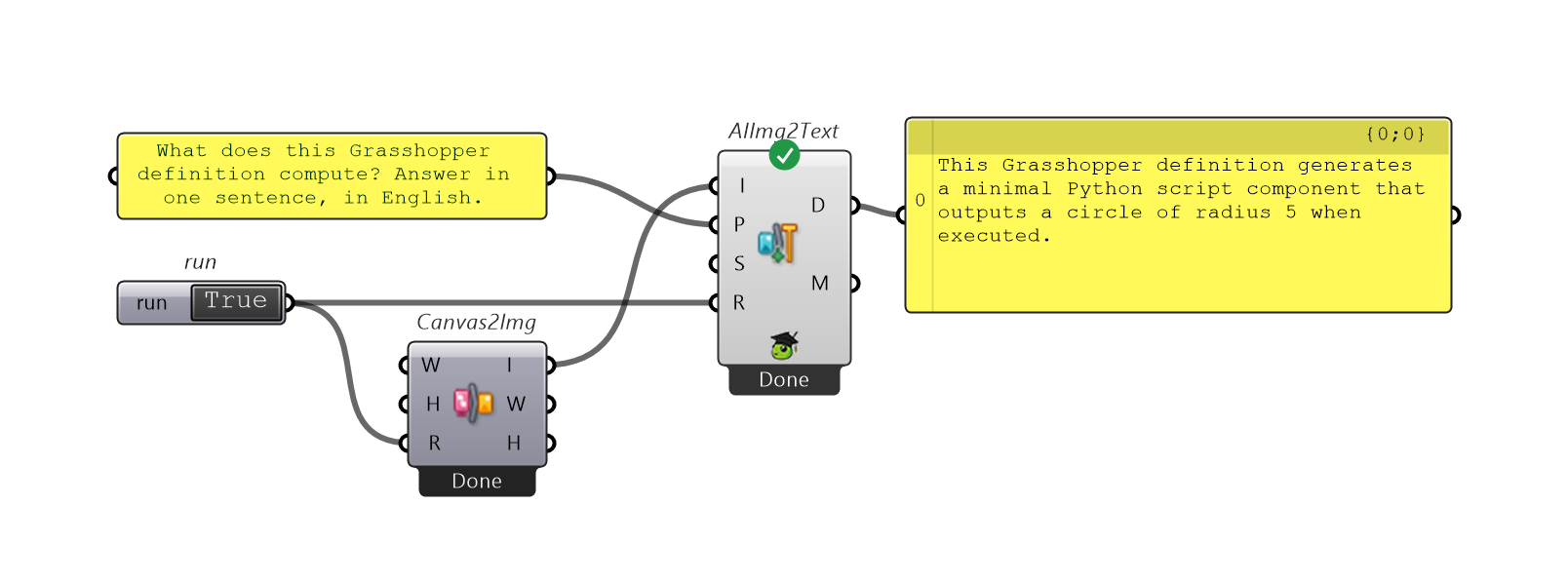
One-step image generation & vision (G. Media)
| Icon | Component | Nickname | What it does | Preview |
|---|---|---|---|---|
 | AI Text To Image | AIText2Img | Generates an image from a text Prompt using an image-generation model, with options for Size and Aspect Ratio. Outputs the generated Image and any provider-returned Revised Prompt. | 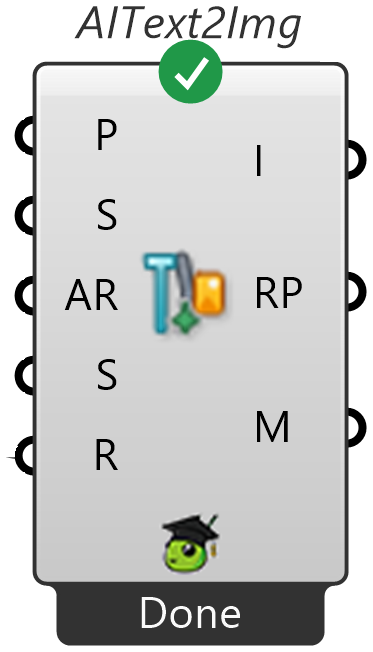 |
 | AI Image To Text | AIImg2Text | Describes or answers questions about an Image (Bitmap, file path, URL, or base64) using a vision-capable model, guided by an optional Prompt. | 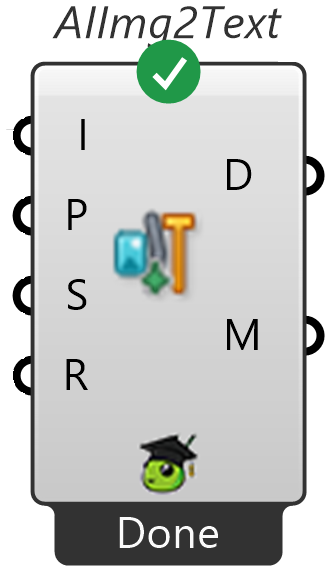 |
Input → Output media components
On-canvas viewers (G. Media)
| Icon | Component | Nickname | What it does | Preview |
|---|---|---|---|---|
 | Image Viewer | ImgView | Displays an image directly on the Grasshopper canvas and saves it to disk (.png, .jpg, .bmp, .gif, .tiff) when Save? is triggered. | 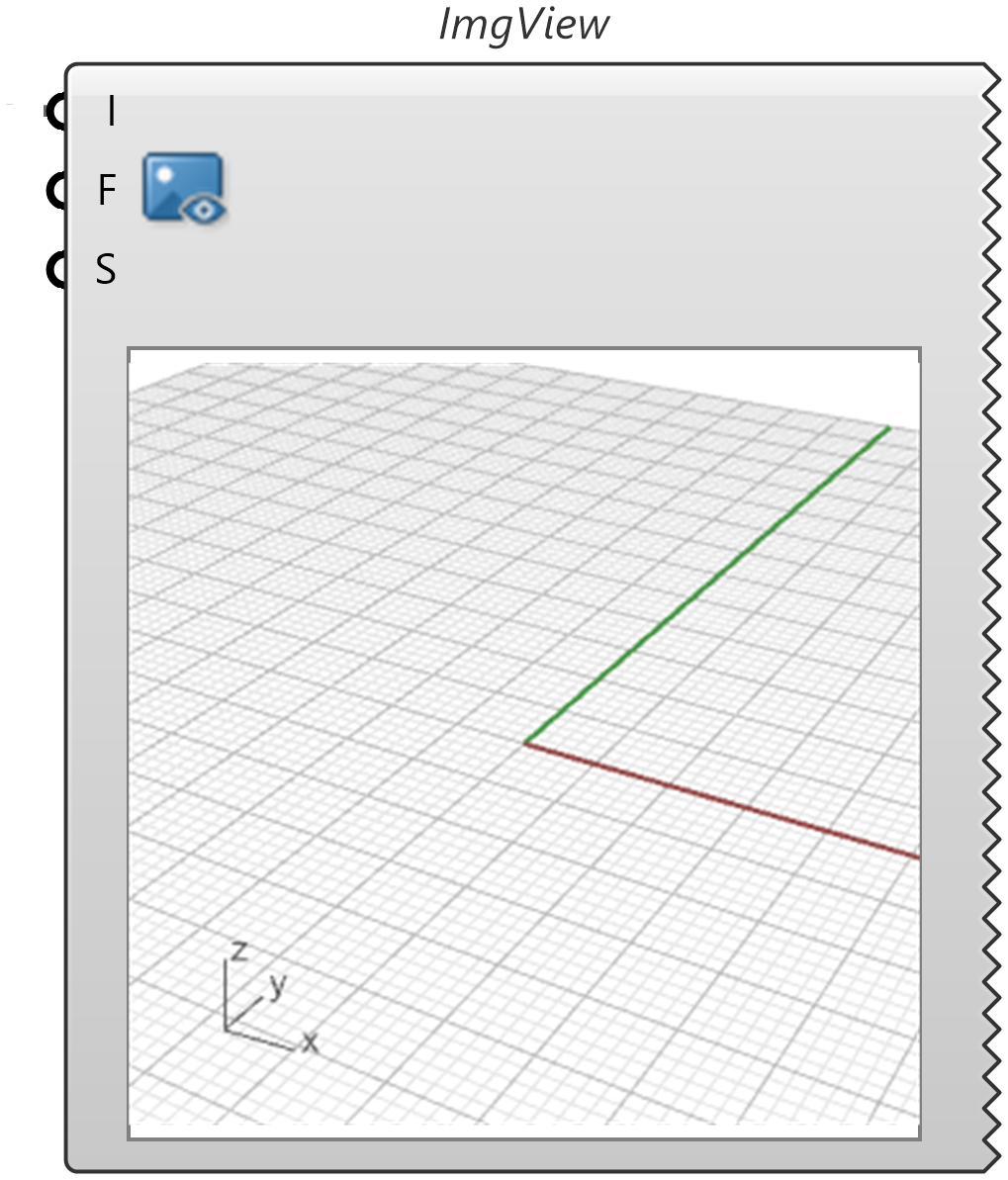 |
 | Audio Viewer | AudioView | Previews and plays audio directly on the canvas (built-in Play button) and saves it to disk (.mp3, .wav, .m4a, .aac, .flac, .ogg, .wma, .opus) when Save? is triggered. | 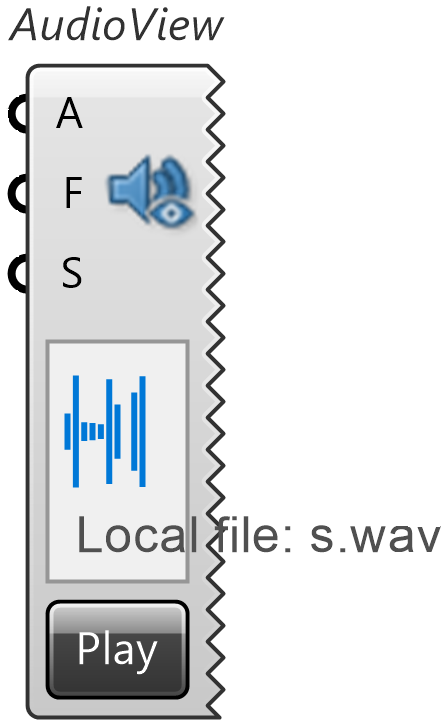 |
Canvas & viewport capture (G. Media)
| Icon | Component | Nickname | What it does | Preview |
|---|---|---|---|---|
 | Canvas To Image | Canvas2Img | Captures a screenshot of the visible Grasshopper canvas when Run? is set to True (bounded by Max Width and Max Height, default 1920×1080) and outputs the Image along with its pixel Width and Height. | 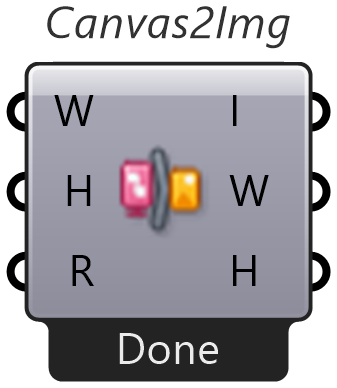 |
 | Viewport To Image | Viewport2Img | Captures a screenshot of the active or named Rhino viewport (View Name) when Run? is set to True (bounded by Width and Height, default 1024×1024) and outputs the Image, Width, Height, and captured View Name. | 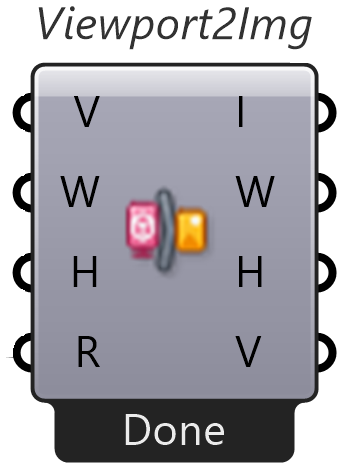 |
Wire Viewport To Image into AI Image To Text (or Image to AI → AI to Text) to ask a vision model about your 3D geometry — for example, checking massing proportions or diagnosing a broken mesh preview.
Modality fallback
If your selected model does not natively accept image or audio inputs, SmartHopper's Modality fallback setting (SmartHopper → Settings → General) can automatically convert the media through a capable model first — see Settings reference.