Canvas & GhJSON Components
The components in SmartHopper → D. GhJSON let you read, build, rearrange, validate, compare, and save Grasshopper definitions as plain-text GhJSON (.ghjson) and GhPatch (.ghpatch) documents.
Every component that modifies your active canvas (Place GhJSON, Apply GhPatch to Canvas, Tidy Up, and AI Smart Connect) opens the canvas change review dialog before making any changes. You can inspect and approve the proposed edits item by item, and Ctrl+Z undoes them in a single step.
Reading and inspecting the canvas (D. GhJSON)
Use these components when you want to export your current definition (or part of it) as text, inspect what components are installed, or generate a health report of your file.
| Icon | Component | Nickname | What it does | Preview |
|---|---|---|---|---|
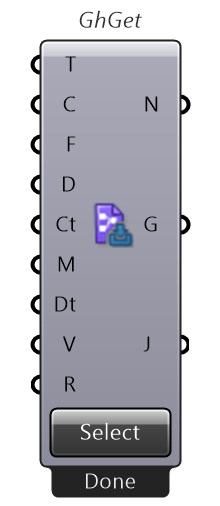
 | Get GhJSON | GhGet | Exports the active Grasshopper canvas — or only the components you pick with Select Components — to a GhJSON string, along with lists of component names and GUIDs. | 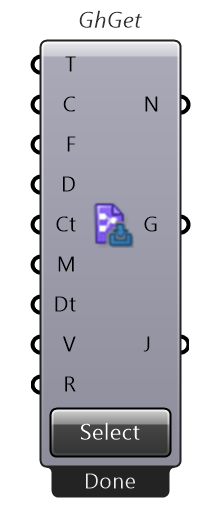 |
 | Retrieve Components | GhRetrieveComponents | Lists every component type installed in your Grasshopper environment as JSON, with an optional category filter (such as +Maths or -Params). | 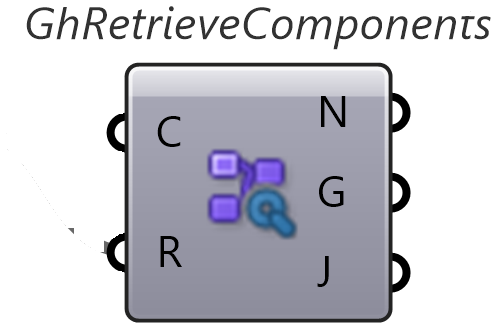 |
 | AI Canvas Report | AIGhReport | Produces a Markdown status report of your open file (component counts, graph structure, groups, scribbles, viewport contents, metadata, and runtime warnings/errors), plus an optional AI summary. | 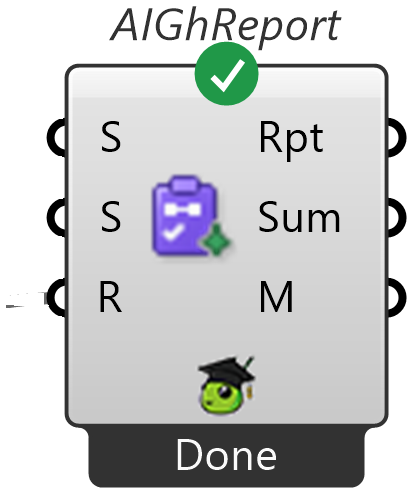 |
Filtering what Get GhJSON exports
Large definitions can easily exceed an AI model's context window. Use Get GhJSON's filter inputs to keep the exported GhJSON focused:
- Select Components button — click on the component to pick specific objects on the canvas interactively.
- Type filter — include (
+) or exclude (-)params,components,startnodes,endnodes,middlenodes, orisolatednodes. - Category Filter — include or exclude Grasshopper tabs/panels (for example,
+Maths,-Script). - Attribute Filter — filter by component state or message level:
error,warning,remark,selected,unselected,enabled,disabled,previewon,previewoff. - Connection Depth —
0exports only matching components;1also includes their immediate neighbors; higher numbers expand further along connected wires. - Count — maximum number of components to include in the output (defaults to
100). - Viewport Only — exports only the components currently visible on screen.
- Include Metadata — embeds document metadata (timestamps, Rhino/Grasshopper versions, file metadata, and plugin dependencies).
- Include Runtime Data — embeds live output values flowing through wires (leave
Falseunless the AI needs to inspect actual calculated values, as it can make the JSON much larger).
Placing, wiring, and tidying components (D. GhJSON)
Use these components to place new definitions on the canvas, update existing components, wire components together with AI, or clean up a messy layout.
| Icon | Component | Nickname | What it does | Preview |
|---|---|---|---|---|
 | Place GhJSON | GhPut | Places or updates Grasshopper components on the canvas from a GhJSON string or .ghjson file path. |  |
 | Apply GhPatch to Canvas | GhPatchApplyCanvas | Applies a .ghpatch diff directly to the active canvas, adding, removing, or modifying only the changed objects. |  |
 | Tidy Up | GhTidyUp | Rearranges the components you pick with Select Components into a clean left-to-right grid that follows their wire connections. |  |
 | AI Smart Connect | AIGhConnect | Connects selected components automatically: pick the components on the canvas with Select Components, describe your goal in Purpose, and let the AI propose the wires. | 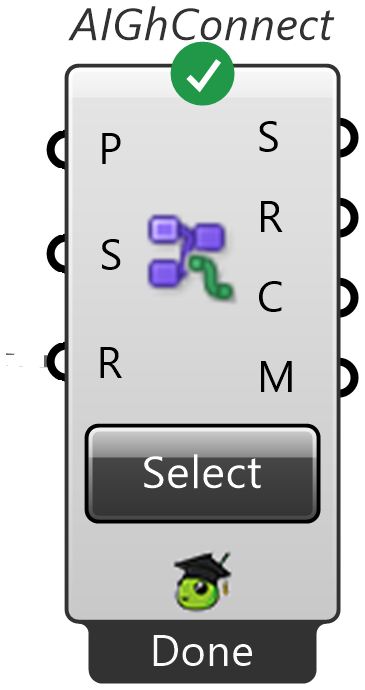 |
How Place GhJSON handles layout and existing components
- Automatic layout for new components: If a GhJSON document omits
pivotcoordinates (which is the recommended style for AI-generated GhJSON), Place GhJSON calculates a clean left-to-right layout automatically. New components that connect to existing fixed components are positioned relative to those neighbors; disconnected components are placed below your existing work so nothing overlaps. - Preserving saved coordinates: If a GhJSON document already contains
pivotcoordinates (for example, exported from Get GhJSON), those positions are preserved verbatim. - In-place updates: If a component in the GhJSON document has an
instanceGuidthat matches a component already on your canvas, Place GhJSON updates that component in place and preserves its external wires instead of creating a duplicate.
Validating, comparing, and merging GhJSON (D. GhJSON)
These components work purely on GhJSON and GhPatch text in memory, without modifying your active canvas:
| Icon | Component | Nickname | What it does | Preview |
|---|---|---|---|---|
 | Validate GhJSON | GhValidate | Checks whether a GhJSON string is valid at Minimal (0), Standard (1, default), or Strict (2) level, and lists any errors, warnings, or notes. Set Prefer Online (O) to fetch the latest schema before falling back to the embedded one. | 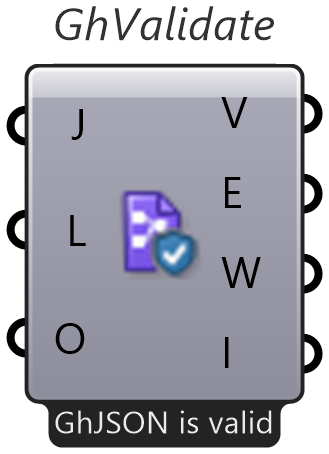 |
 | Diff GhJSON | GhDiff | Compares two GhJSON documents (Left and Right) and outputs a .ghpatch describing which components, connections, and groups were added, removed, or modified. | 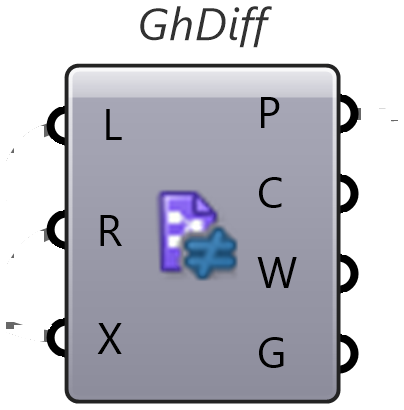 |
 | Merge GhJSON | GhMerge | Combines two GhJSON documents (Target and Source) into one. If both contain a component with the same GUID, Target takes priority. | 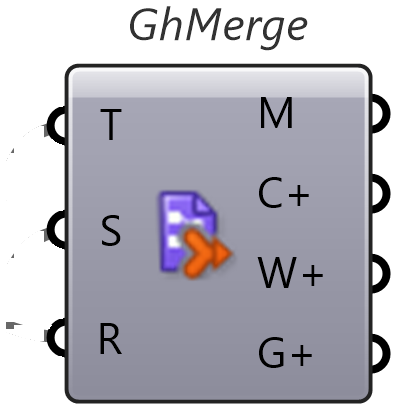 |
 | Apply GhPatch | GhPatchApply | Applies a .ghpatch diff to a base GhJSON string and outputs the patched GhJSON document (verifying the base checksum by default). | 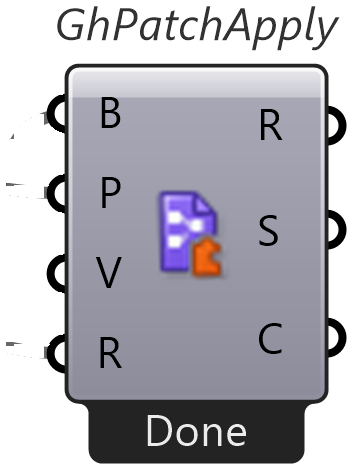 |
Opening and saving .ghjson and .ghpatch files (D. GhJSON)
| Icon | Component | Nickname | What it does | Preview |
|---|---|---|---|---|
 | Open GhJSON | OpenGhJSON | Reads a .ghjson file from disk, validates it, and outputs the GhJSON text along with validation results. | 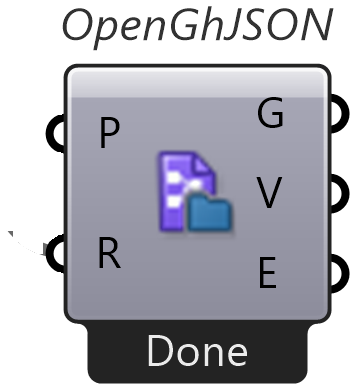 |
 | Save GhJSON | SaveGhJSON | Writes a GhJSON string to a .ghjson file on disk and outputs the saved file path. | 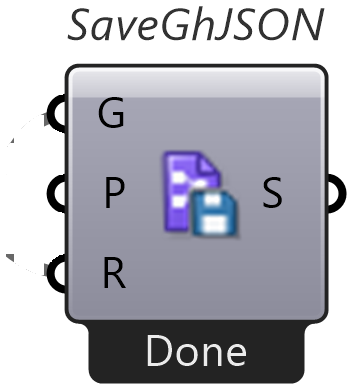 |
 | Open GhPatch | OpenGhPatch | Reads a .ghpatch file from disk, validates it, and outputs the GhPatch text along with validation results. | 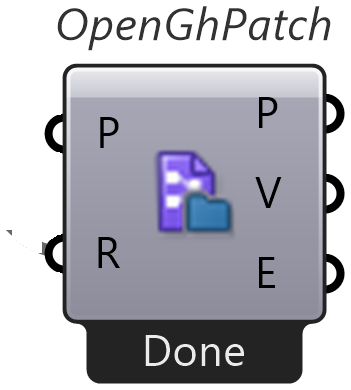 |
 | Save GhPatch | SaveGhPatch | Writes a GhPatch string to a .ghpatch file on disk and outputs the saved file path. | 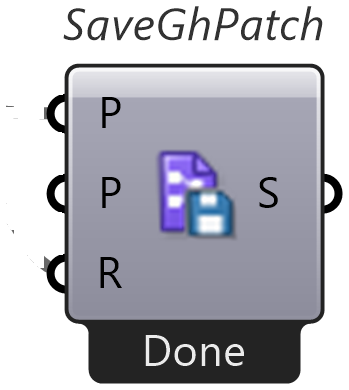 |
Learn more about the format and workflows in Work with GhJSON and Edit your canvas with AI.